# Custom Fields
> Store additional structured data on customers, subscriptions, products, prices, invoices, and checkout sessions. Define typed fields with validation rules to extend PaymentKit's data model for your business needs.
# Overview
Custom fields let you attach structured, validated data to PaymentKit objects. Unlike free-form metadata, custom fields enforce data types, constraints, and provide a consistent schema across your integration.
You can manage custom fields via the [Business Portal](#managing-custom-fields-in-the-business-portal) or the [API](#creating-field-definitions).
```json {5-9}
{
"id": "cus_abc123",
"email": "jane@acme.com",
"name": "Jane Smith",
"custom_fields": {
"company_size": "51-200",
"sales_rep": "john@yourcompany.com",
"is_enterprise": true
}
}
```
These fields are defined once, then values can be set on any customer:
| Field | Type | Constraints |
| --------------- | ------- | -------------------------------------------------- |
| `company_size` | select | `["1-10", "11-50", "51-200", "201-1000", "1000+"]` |
| `sales_rep` | text | — |
| `is_enterprise` | boolean | — |
# Supported entity types
Custom fields can be attached to these resources:
| Entity Type | Description |
| --------------------- | ------------------------------------------------------------------------- |
| **customer** | Store customer-specific data like company size, industry, or internal IDs |
| **subscription** | Track subscription metadata like contract terms or sales rep |
| **product** | Add product attributes like SKU codes or cost centers |
| **price** | Store pricing metadata like margin or promotional flags |
| **invoice** | Attach invoice-specific data like PO numbers or department codes |
| **checkout\_session** | Pass through data from your checkout flow |
# Data types
Custom fields support four data types with optional constraints:
| Type | Value format | Constraints |
| ----------- | ----------------------------------------- | -------------------- |
| **text** | String (max 500 characters) | Not supported |
| **number** | Integer or decimal (positive or negative) | `min`, `max` |
| **boolean** | `true` or `false` | Not supported |
| **select** | String from allowed list | `options` (required) |
All custom fields are optional. There is no "required" constraint—if you need mandatory fields, enforce that in your application logic.
# Managing custom fields in the Business Portal
The Business Portal provides a complete UI for managing custom field definitions and values.
## Creating and editing definitions
Navigate to **Settings → Custom Fields** to view all custom field definitions for your account. From here you can:
* **Create new definitions** — Click "Create Custom Field" and fill in the field key, display name, entity type, data type, constraints (if applicable), and visibility settings
* **View definition details** — Click any row to open a side panel with full details
* **Edit definitions** — Update the display name, description, constraints, and visibility settings (field key, entity type, and data type cannot be changed after creation)
* **Delete definitions** — Remove a definition and all its values across all entities (requires typing the field key to confirm)
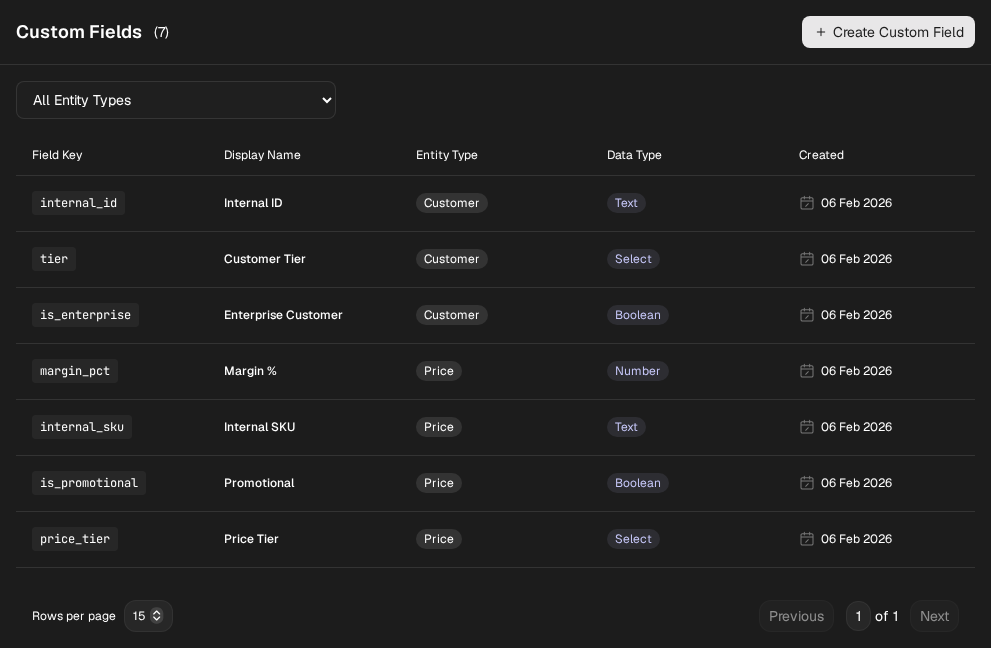
For select fields, you can add new options when editing, but you cannot remove options that are in use. Existing options in the edit form are disabled to prevent accidental removal.
## List view visibility
Each custom field definition has a "Show in List View" setting that controls whether the field appears as a column in entity list views:
| Setting | Behavior |
| ---------------- | ---------------------------------------------------------------------------------------------------------------- |
| **On** (default) | Field appears as a column in list views and enables filtering |
| **Off** | Field is hidden from list views and cannot be used for filtering, but can still be viewed/edited in detail pages |
This is useful when you have many custom fields but only want a subset visible in tables.
## Viewing and editing values on entities
Custom field values can be viewed and edited directly on entity detail pages. For example, on a **Price detail page**:
1. The **Custom Fields** section displays all current values for that price
2. Click **Edit** to open a side panel titled "Edit Custom Fields" with a form for all defined price custom fields
3. Each field type renders an appropriate input (text input, number input, select dropdown with clearable support, or toggle switch for booleans)
4. Clear a field to remove its value
5. Click **Save Changes** to persist changes, or **Cancel** to discard
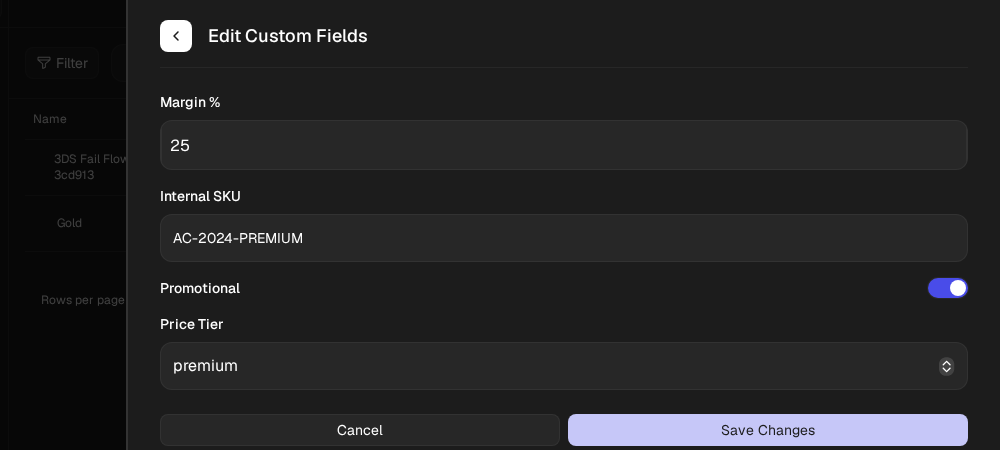
The Custom Fields section only appears if there are custom field definitions for that entity type. If no definitions exist, the section is hidden. When the section is visible but no values are set, it displays "No custom field values set."
## Filtering by custom fields
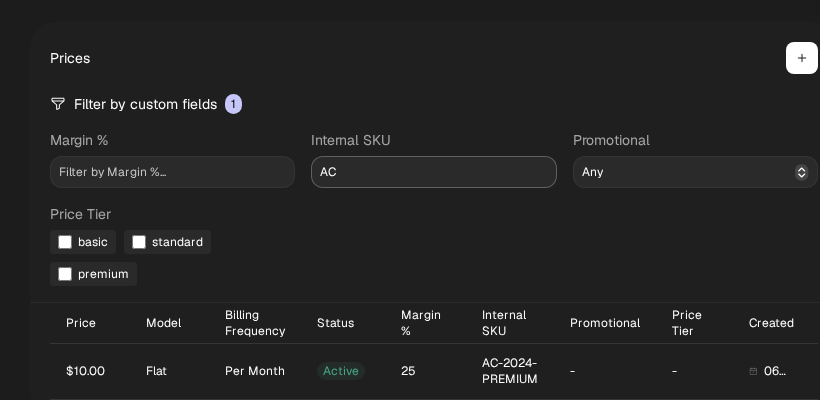
In list views (like the Prices table on a Product detail page), you can filter by custom field values:
1. Click **Filter by custom fields** to expand or collapse the filter panel
2. Filter controls appear for each visible custom field:
* **Text fields** — Type to filter (case-insensitive substring match)
* **Number fields** — Enter a number to filter (partial match)
* **Boolean fields** — Select "Yes", "No", or "Any"
* **Select fields** — Check one or more options (prices matching ANY selected option are shown)
3. A badge next to the button shows the number of active filters (filters with at least one value selected)
# Creating field definitions
Before storing values, create a field definition to establish the schema.
See [Create Custom Field Definition](/api-reference/api-reference/custom-field-definitions/create-custom-field-definition) for the full API reference.
# Field definition examples
```json
{
"field_key": "internal_id",
"entity_type": "customer",
"data_type": "text",
"display_name": "Internal ID",
"is_visible_in_list": true
}
```
```json
{
"field_key": "seat_count",
"entity_type": "subscription",
"data_type": "number",
"display_name": "Seat Count",
"constraints": {
"min": 1,
"max": 10000
},
"is_visible_in_list": true
}
```
```json
{
"field_key": "is_enterprise",
"entity_type": "customer",
"data_type": "boolean",
"display_name": "Enterprise Customer",
"is_visible_in_list": false
}
```
Set
`is_visible_in_list`
to
`false`
to hide this field from list views while still allowing it to be viewed on detail pages.
```json
{
"field_key": "tier",
"entity_type": "customer",
"data_type": "select",
"display_name": "Customer Tier",
"constraints": {
"options": ["bronze", "silver", "gold", "platinum"]
},
"is_visible_in_list": true
}
```
# Listing field definitions
Retrieve all definitions for your account, optionally filtered by entity type.
See [List Custom Field Definitions](/api-reference/api-reference/custom-field-definitions/list-custom-field-definitions) for the full API reference.
# Setting custom field values
Set values when creating or updating entities by including a `custom_fields` object in your request body:
```json
{
"custom_fields": {
"company_size": "51-200",
"internal_id": "CRM-12345",
"is_enterprise": true
}
}
```
See [Create Customer](/api-reference/api-reference/customers/create-customer) or [Update Customer](/api-reference/api-reference/customers/update-customer) for examples. The same pattern applies to all supported entity types.
You can also set and update custom field values directly in the Business Portal. See [Viewing and editing values on entities](#viewing-and-editing-values-on-entities).
## Updating custom fields on immutable entities
Some entities like **prices** are immutable after creation—you cannot change their core properties. However, custom fields can still be updated via the `PATCH` endpoint:
```bash
curl -X PATCH "https://api.paymentkit.com/api/{account_id}/prices/{price_id}" \
-H "Authorization: Bearer {api_token}" \
-H "Content-Type: application/json" \
-d '{"custom_fields": {"internal_sku": "AC-2024-PREMIUM"}}'
```
See [Update Price](/api-reference/api-reference/prices/update-price) for the full API reference.
# Reading custom field values
Custom fields are returned when you expand them in your request using `?expand=custom_fields`:
```json
{
"id": "cus_abc123",
"email": "jane@company.com",
"name": "Jane Smith",
"custom_fields": {
"company_size": "51-200",
"internal_id": "CRM-12345",
"is_enterprise": true,
"tier": "gold"
}
}
```
Without the `expand=custom_fields` parameter, custom fields are not included in the response to keep payloads small. To expand multiple fields, use `expand=custom_fields,other_field`.
See [Get Customer](/api-reference/api-reference/customers/get-customer) for the full API reference.
# Clearing field values
Set a field to `null` to remove its value:
```json
{
"custom_fields": {
"internal_id": null
}
}
```
See [Update Customer](/api-reference/api-reference/customers/update-customer) for the full API reference.
# Updating field definitions
You can update `display_name`, `description`, `constraints`, and `is_visible_in_list` on existing definitions.
You cannot change the `field_key`, `data_type`, or `entity_type` of an existing definition. Create a new definition instead.
See [Update Custom Field Definition](/api-reference/api-reference/custom-field-definitions/update-custom-field-definition) for the full API reference.
## Updating select field options
When updating a select field's options, you can add new options freely. However, you **cannot remove options that are currently in use**. If any entity has a value set to an option you're trying to remove, the update will fail with a 422 error: `"Cannot remove select options that are in use: ['option1', 'option2']"`.
To remove an option:
1. First update all entities using that option to a different value
2. Then update the definition to remove the option
# Deleting field definitions
Deleting a definition removes all associated values across all entities. This is a destructive operation. The `confirm_field_key` parameter must match the definition's field key to prevent accidental deletion. If the keys don't match, the request fails with a 400 error. The response includes an `X-Deleted-Values-Count` header showing how many values were deleted.
See [Delete Custom Field Definition](/api-reference/api-reference/custom-field-definitions/delete-custom-field-definition) for the full API reference.
# Validation
Custom fields are validated on write:
| Error | Cause |
| ------------------------ | --------------------------------------------------------------------------------------------- |
| **Unknown field** | Field key not defined for entity type |
| **Type mismatch** | Value doesn't match data type (e.g., string for number field) |
| **Constraint violation** | Text exceeds 500 characters, number outside `min`/`max` range, or value not in `options` list |
Example error response:
```json
{
"type": "about:blank",
"title": "HTTP Error",
"status": 400,
"detail": "Custom field 'tier' value 'unknown' is not a valid option. Valid: ['bronze', 'silver', 'gold', 'platinum']",
"instance": "/api/acc_xxx/customers/cus_xxx",
"request_id": "req_xxx"
}
```
# Test and live mode
Custom field definitions are scoped to your account and are **separate between test and live modes**. Definitions you create in test mode won't appear in live mode and vice versa. This lets you safely experiment with field schemas in test mode before creating them in production.
# Webhooks
Custom field changes are included with the parent entity's webhook events. For example, when you update a customer's custom fields, the `customer.updated` webhook will include the updated `custom_fields` in the payload. There are no separate webhook events for custom field changes.
# Best practices
Use snake\_case for field keys (e.g., `company_size`, not `CompanySize`). Keys are case-insensitive and normalized.
Use `select` for enumerated values, `number` for quantities, `boolean` for flags. Avoid storing everything as text.
Define `min`/`max` for numbers or `options` for selects to catch bad data early and keep your data clean.
Use `display_name` and `description` to make fields self-documenting for your team.
# Limits
| Limit | Value |
| ----------------------- | --------------- |
| Definitions per account | 1,000 |
| Field key length | 2-64 characters |
| Text value max length | 500 characters |
| Select options | Unlimited |